Getting your first website, server, or email account running on Momo Cloud takes only a few minutes. The flow is the same for every product: create an account, choose a plan, generate an invoice, pay, and let the platform provision your service automatically.
This guide walks you through the whole journey end to end — from signing up at cloud.momo.tz to logging in to your new control panel — so you know exactly what to expect at each step.
Step 1: Create Your Account and Verify Your Email
Everything on Momo Cloud is managed from a single client area. Start by creating your account there.
- Open
cloud.momo.tzin your browser and click Register (or Sign Up). - Enter your name, email address, phone number, and a strong password. The email you use here becomes your login and your billing contact, so choose one you check regularly.
- Submit the form. Momo Cloud sends a verification email to that address.
- Open the email and click the verification link. Once verified, return to
cloud.momo.tzand log in with your email and password.
Tip: If the verification email does not arrive within a few minutes, check your spam or junk folder. Automated mail is sometimes filtered there on first contact.
Step 2: Browse the Catalogue and Compare Plans
Momo Cloud offers several product families, each suited to a different need. Browse the catalogue from the client area and pick the category that matches what you are building.
| Product | Best for | How you manage it |
|---|---|---|
| Shared / web hosting | Websites, WordPress, small business sites, email-with-a-site | cPanel (or managed CyberPanel on some plans) |
| VPS | Full root access, custom apps, staging servers, self-managed stacks | Proxmox-based panel from the client area |
| Email hosting | Professional mailboxes on your own domain | Webmail and mail client settings |
| Cloud GPU | Machine learning, rendering, GPU-accelerated workloads | Dedicated dashboard, connect over SSH |
A quick rule of thumb: if you just want a website online, choose shared hosting — it is the least work because the platform manages the server for you. If you need full control of the operating system and to install your own software, choose a VPS. For GPU compute, head to the Cloud GPU section, which has its own create flow.
Step 3: Pick a Plan and a Billing Cycle
Open a product category to see the available plans side by side, with their resources (storage, RAM, CPU, mailboxes, and so on) listed in Tanzanian Shillings (TZS).
- Choose the plan that fits your needs. It is fine to start small — most services can be upgraded later.
- Select a billing cycle: monthly or annual. An annual cycle means fewer renewals to manage; a monthly cycle keeps your upfront cost lower.
- Click Order (or Order Now) to enter the order wizard.
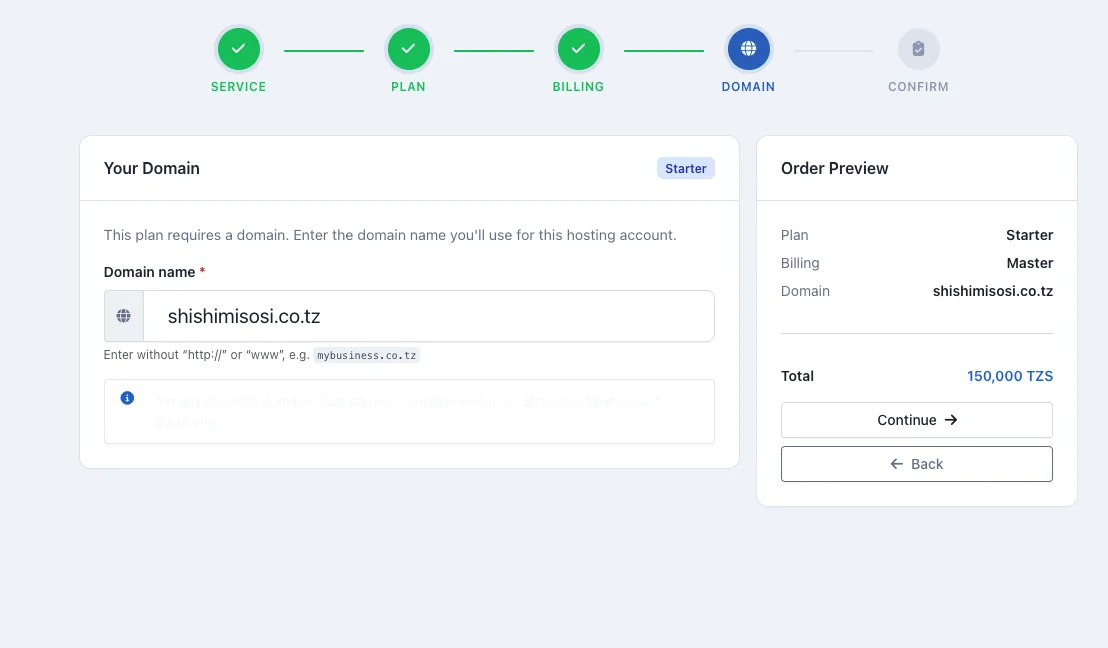
Step 4: Register or Connect Your Domain
Most plans need a domain name. The order wizard gives you two options.
- Register a new domain — search for an available name and add it to your order. It will be registered as part of the same checkout.
- Use a domain you already own — enter your existing domain. You can point it at Momo Cloud later, so there is no rush to change anything yet.
If you bring your own domain, you point it to Momo Cloud by updating the nameservers at your current registrar to:
ns1.momo.tz
ns2.momo.tz
Tip — pointing your domain: You do not have to update your nameservers before ordering. Order and pay first, confirm your service works, then switch the nameservers to ns1.momo.tz and ns2.momo.tz when you are ready. DNS changes can take up to 24 hours to propagate worldwide, so plan the switch accordingly.
Step 5: Review the Order Summary and Invoice
Before anything is charged, the wizard shows an order summary listing your plan, the billing cycle, any domain, and the total in TZS. Check it carefully.
When you confirm the order, Momo Cloud generates an invoice for it. The invoice appears under Billing > My Invoices in the client area and shows the line items, the amount due, the due date, and a status of Unpaid until you pay. Nothing is provisioned yet — the service activates once this invoice is paid.
Step 6: Pay From the Client Area
Open the unpaid invoice from Billing > My Invoices and choose how you want to pay. Momo Cloud accepts:
- M-Pesa
- Tigo Pesa
- Airtel Money
- Visa / Mastercard
- Your TZS wallet balance, if you have topped it up
Follow the prompts for your chosen method — for mobile money you will typically confirm a push prompt on your phone. Once the payment is confirmed, the invoice is marked Paid.
Tip — use your wallet for uninterrupted renewals: Go to Billing > Add Funds and top up your TZS wallet. When a renewal invoice is later generated, the platform applies your wallet balance automatically and marks it paid — no manual payment, no risk of a missed renewal suspending your service. Keeping at least one renewal cycle of credit in your wallet is the simplest way to stay online.
Step 7: Automatic Provisioning
After payment is confirmed, Momo Cloud provisions your service automatically — there is nothing more to click. Within a few minutes the new service appears under Services > My Services in the client area, marked as active.
If a service has not appeared after a reasonable wait, refresh the page first. If it still does not show, open a support ticket with your invoice number and transaction reference so the team can reconcile it.
Step 8: Open Your Service and Find Its Control Panel
Click your service under Services > My Services to open its detail page. What you find there depends on the product.
Shared / web hosting
The service page links to your cPanel login (or the managed CyberPanel on some plans). From there you manage files, email accounts, databases, and SSL. Your welcome email also contains the panel details.
VPS
The VPS detail page is your Proxmox-based control panel. It shows the server's IP address and root password (click the eye icon to reveal it), the installed OS, and Start / Stop / Reboot power controls. You also get an in-browser Console / VNC, snapshots and backups, and resource graphs. Momo Cloud's default OS for servers is Ubuntu 22.04 / 24.04 LTS. Connect over SSH like this:
ssh root@YOUR_SERVER_IPOnce in, your first job should be to apply updates and set up a non-root user:
apt update && apt upgrade -yCloud GPU
Cloud GPU instances are created from Cloud GPU > Create in the client area and, after payment, are provisioned automatically. The instance dashboard shows its connection details; you connect over SSH the same way as a VPS, using the credentials shown there.
How Renewals, Auto-Renew, and Invoices Work
Each service has its own renewal date. A few days before it, Momo Cloud automatically generates a renewal invoice and emails your billing contact. From there:
- If your wallet balance covers the invoice, the credit is applied automatically and the invoice is marked
Paid— your service renews with no action from you. - If your wallet is short, the invoice stays
Unpaidand you pay it manually with mobile money or card before the due date. - Unpaid invoices that pass their due date can lead to suspension, so settle them promptly or keep your wallet topped up.
You can view and download any invoice as a PDF from Billing > My Invoices for your records.
Where to Get Help
Momo Cloud support is available 24/7 in English and Swahili through support tickets in the client area. If you get stuck ordering, paying, or accessing a panel, open a ticket and include your invoice number and any transaction reference for the fastest resolution.
Wrapping Up
Ordering on Momo Cloud follows one simple pattern every time: choose a plan and billing cycle, sort out your domain, pay the generated invoice, and let the platform provision the service automatically before you log in to its control panel. Keep a little credit in your TZS wallet and your renewals will look after themselves.
Ready to begin? Log in at cloud.momo.tz, pick a plan that fits your project, and spin up your first service — and if anything is unclear, the support team is one ticket away.