A single stolen password should not be enough to reach your servers, hosting settings, billing details, or support access. Enabling two-factor authentication on your Momo Cloud account adds a quick extra verification step that makes unauthorized sign-in much harder.
If you manage VPS instances, hosting services, invoices, or other account actions in your client area, this is one of the simplest security upgrades you can make. The setup is straightforward, and once it is enabled, signing in still takes only a few extra seconds.
What Two-Factor Authentication Does
Two-factor authentication, usually shortened to 2FA, means signing in with two separate things instead of one. First, you enter your normal account password. After that, you enter a time-based 6-digit code generated by an authenticator app on your phone or other device.
In simple terms, your password is the first factor, and the rotating code from your authenticator app is the second factor. Because the code changes regularly and is tied to your setup, it is much harder for an attacker to use your password on its own.
It adds a second step beyond your password
Without 2FA, anyone who knows your email address and password may be able to sign in. With 2FA enabled on your Momo Cloud account, entering the correct password is no longer enough by itself. After the password is accepted, you must also provide the current 6-digit verification code from your authenticator app to complete the login.
This matters because passwords can be guessed, reused, leaked from another service, or captured through phishing. An authenticator app-based code adds a separate checkpoint that is not stored in the same place as your password.
Momo Cloud uses an authenticator app for the second factor
On Momo Cloud, the extra verification step is based on an authenticator app. That means you set up 2FA by linking your account to an app such as Google Authenticator, Microsoft Authenticator, Authy, or another compatible app that supports standard one-time login codes.
Once linked, the app shows a 6-digit code for your Momo Cloud account. You use that code during sign-in whenever prompted. This is more secure than relying on a password alone, because the second factor comes from a device you control rather than from something you can memorize or reuse elsewhere.
You will see a separate verification screen at login
After 2FA is enabled, your login flow changes slightly. You still begin by entering your usual account credentials in the Momo Cloud client area at cloud.momo.tz. If the password is correct, the sign-in process continues to a separate two-step verification screen.
On that screen, you enter the current 6-digit code from your authenticator app. Only after that code is validated is access to the account completed. In other words, the login experience becomes a clear two-stage process: password first, verification code second.
Recovery codes act as a backup method
When you enable 2FA, you are also given recovery codes. These are one-time backup codes you can store safely and use if your authenticator app is temporarily unavailable, for example if your phone is lost, reset, damaged, or out of reach.
Recovery codes are not for everyday sign-in. They are an emergency fallback designed to help you regain access when you cannot get the normal 6-digit code from your app. Because they can be used to enter the account, they should be stored somewhere secure and private.
Tip: Think of 2FA as a lock added on top of your password, and recovery codes as the spare key you keep in a safe place for emergencies.
Why 2FA Matters for Your Momo Cloud Account
For many people, a password feels like the main thing standing between an account and an attacker. The problem is that passwords are often easier to expose than they seem. Someone might guess a weak password, capture it through phishing, reuse it from an older breach, or obtain it because the same password was used on more than one website.
Two-factor authentication matters because it adds a second barrier after the password. That means knowing the password alone is no longer enough to sign in. Even if somebody gets that first piece of information, they would still need the time-based code from your authenticator app or a valid recovery code to continue.
Your client account is more than just a login
Your Momo Cloud account can hold access to several important parts of your online presence. Depending on the services you use, the client area may expose billing information, active hosting or VPS services, domain-related details, support tickets, and account-level actions that affect your infrastructure.
That is why account protection matters in practical terms. If an attacker gets into a cloud or hosting account, the risk is not limited to reading one profile page. They may be able to view service details, interact with support, manage products tied to your business, or use account access as a starting point for wider disruption.
Many customers use one account to manage multiple services at once. A single sign-in may be connected to production websites, test environments, invoices, and administrative contact details. Adding 2FA helps reduce the chance that one stolen password could open the door to all of that at once.
2FA still helps even when a password is exposed
The biggest advantage of 2FA is simple: it is designed for the moment when your password is no longer secret. If you accidentally enter your password on a fake page, if an old password is leaked somewhere else, or if someone nearby sees you type it, 2FA can still stop that password from being enough on its own.
Without 2FA, a correct password may be the only thing required for access. With 2FA enabled, the attacker hits another checkpoint. They also need the current 6-digit verification code generated on the device you control. In everyday terms, that extra step can be the difference between a failed login attempt and a compromised account.
This is especially useful for customers who manage valuable or business-critical services. A password is something you know. The verification code comes from something you have. Requiring both makes casual account takeover much harder.
A practical safeguard for everyday account security
You do not need to be highly technical to benefit from 2FA. Think of it as a simple safety upgrade for your account. It does not replace a strong password, but it gives you another layer of protection if that password is ever guessed, stolen, or reused.
In practice, that means you are better protected when signing in from shared networks, handling urgent support issues, or managing services that must stay under your control. For a Momo Cloud customer, enabling 2FA is one of the most effective low-effort steps you can take to secure the account that manages your hosting and infrastructure.
Tip: If your Momo Cloud account controls anything important to your website, server, domains, or billing, treat 2FA as essential rather than optional.
Before You Start
Before you begin the setup itself, take a minute to make sure you have everything you need. The process is quick, but it goes much more smoothly when your login details and your phone are already in front of you.
A little preparation helps you avoid getting halfway through setup, switching devices, or timing out while you look for an app or a place to save your recovery codes.
Have your Momo Cloud login details ready
You will need the email address and password you normally use to sign in to your account at cloud.momo.tz. Since 2FA is enabled from inside your account settings, you must first complete a normal login with your existing credentials.
If you are not fully sure which email address is tied to the account, confirm that first. This is especially important if you manage more than one hosting account, handle services for clients, or use different email addresses for billing and technical administration. Starting with the correct login prevents confusion later when the authenticator app creates the new 2FA entry.
Install or open an authenticator app
Momo Cloud's 2FA setup works with standard authenticator apps that generate time-based 6-digit codes. On the setup screen, you may see examples such as Google Authenticator, Authy, Microsoft Authenticator, and 1Password. Any compatible authenticator app of this type should work, but using one of the commonly recognized options keeps the process straightforward.
If you already use one of these apps for other accounts, you can usually add Momo Cloud as a new entry inside the same app. If you do not have one installed yet, install it on your phone before you start the setup in your Momo Cloud client area. That way, when the QR code appears, you can scan it immediately instead of interrupting the process halfway through.
After scanning, the app will create an entry for your Momo Cloud account and begin showing a rotating 6-digit code. These codes refresh automatically every few seconds, so you do not need an SMS message or email to finish verification.
Keep your phone with you during setup
Have the phone you plan to use for authentication ready before opening the security settings. The setup flow depends on it for two tasks: scanning the QR code shown on screen and reading the 6-digit verification code generated by the app.
If your phone is charging in another room, has a low battery, or is not ready to install the app, sort that out first. Even though authenticator apps generate codes locally once configured, getting everything ready in advance helps you complete the setup without rushing.
As a simple setup pattern:
- Open cloud.momo.tz on your laptop or desktop browser.
- Keep your phone unlocked and the authenticator app installed or open.
- When the QR code appears, scan it with the app.
- Enter the current 6-digit code shown on your phone to confirm activation.
Use a trusted device and plan for recovery codes
Because you are changing an important security setting, it is best to sign in from a trusted personal device rather than a shared computer or public machine. A device you control is less likely to have saved browser sessions, unwanted extensions, or other risks that could expose account information while you are updating security options.
You should also be ready to store your recovery codes safely once they are shown. Recovery codes are typically provided after 2FA is enabled so you can still regain access if your phone is lost, replaced, reset, or no longer has your authenticator app configured. These codes are sensitive: anyone who has them may be able to use them to get into your account.
A practical approach is to save them somewhere secure that is not dependent on the same phone you use for 2FA. For example, you might:
- Write them down clearly and keep them in a secure physical location.
- Store them in a password manager you trust.
- Print them and file them with other important account records.
Where possible, an offline copy is a smart backup. If your phone is unavailable and your internet access is limited, an offline record can make account recovery much easier.
Tip: Do not wait until after you enable 2FA to think about recovery. Have a safe place in mind for your recovery codes before you start, and avoid saving them only in screenshots or notes on the same phone used for authentication.
Step 1: Sign In to Your Momo Cloud Account
With your authenticator app ready and a safe place planned for your recovery codes, the next step is to access your Momo Cloud client area. Open the Momo Cloud sign-in page in your browser so you can reach your account dashboard and continue to the security settings.
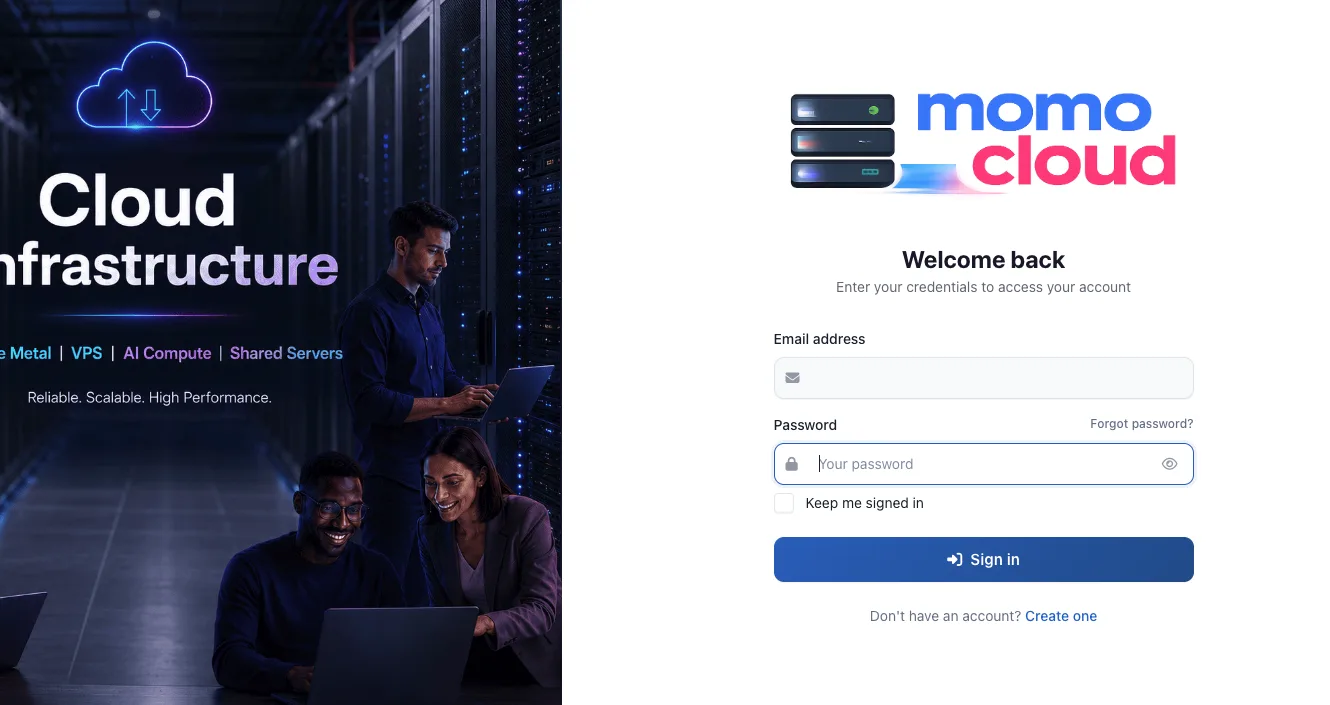
On the sign-in screen, enter the email address associated with your Momo Cloud account in the Email address field. Then enter your account password in the Password field and click the blue Sign in button to continue.

You may also see a Keep me signed in checkbox on this page. This simply appears as part of the sign-in form, but if you are using a shared or public device, be cautious with any setting that keeps a session active after you close the browser.
After a successful sign-in, you will be taken to your Momo Cloud account area. From there, you can open your profile settings and move to the security options where two-factor authentication is enabled.
Step 2: Open Profile Settings from the Dashboard
Once you are inside the Momo Cloud client area, stay on the main dashboard and look to the top-right corner of the page. This area shows your account identity, including your avatar and account name, and it is where the profile and account options are grouped.
Click your account name or avatar to open the dropdown menu. This reveals the account menu used for personal account actions, including the option you need for security settings.
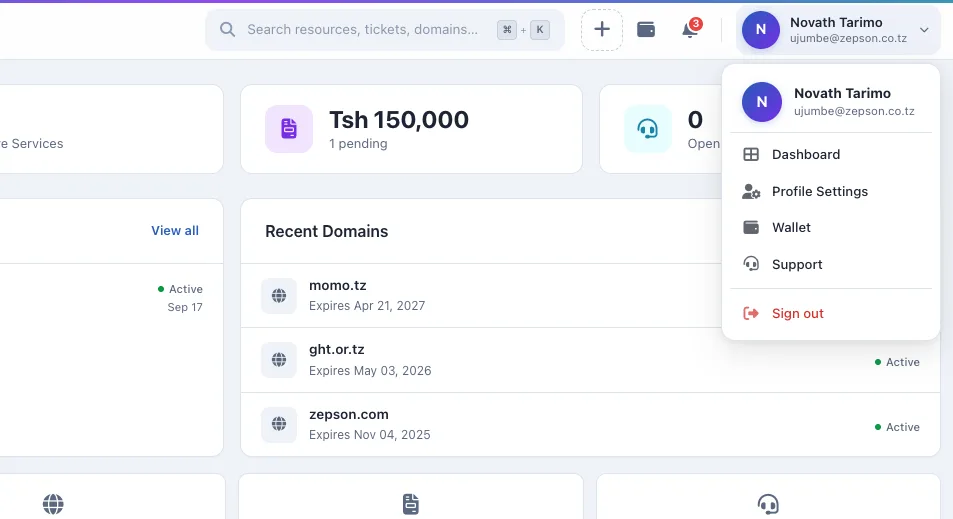
In the dropdown list, select Profile Settings. This takes you from the general dashboard view into the area where your personal account details and security options are managed.
You may also notice other items in the same menu, such as Dashboard, Wallet, Support, and Sign out. Those are normal account navigation links, but for enabling two-factor authentication, the important choice here is Profile Settings.
After you open it, the next step is to switch to the security section of your profile so you can begin the 2FA setup itself.
Step 3: Go to the Security Tab
After opening Profile Settings, you will land on the main account settings page. This page is usually divided into clear tabs so you can move between your personal details, billing-related profile information, and account protection settings.
Near the top of the page, look for the tab row that includes Personal Info, Company & Address, and Security. If you have just arrived from the dashboard, you will normally be on Personal Info by default.
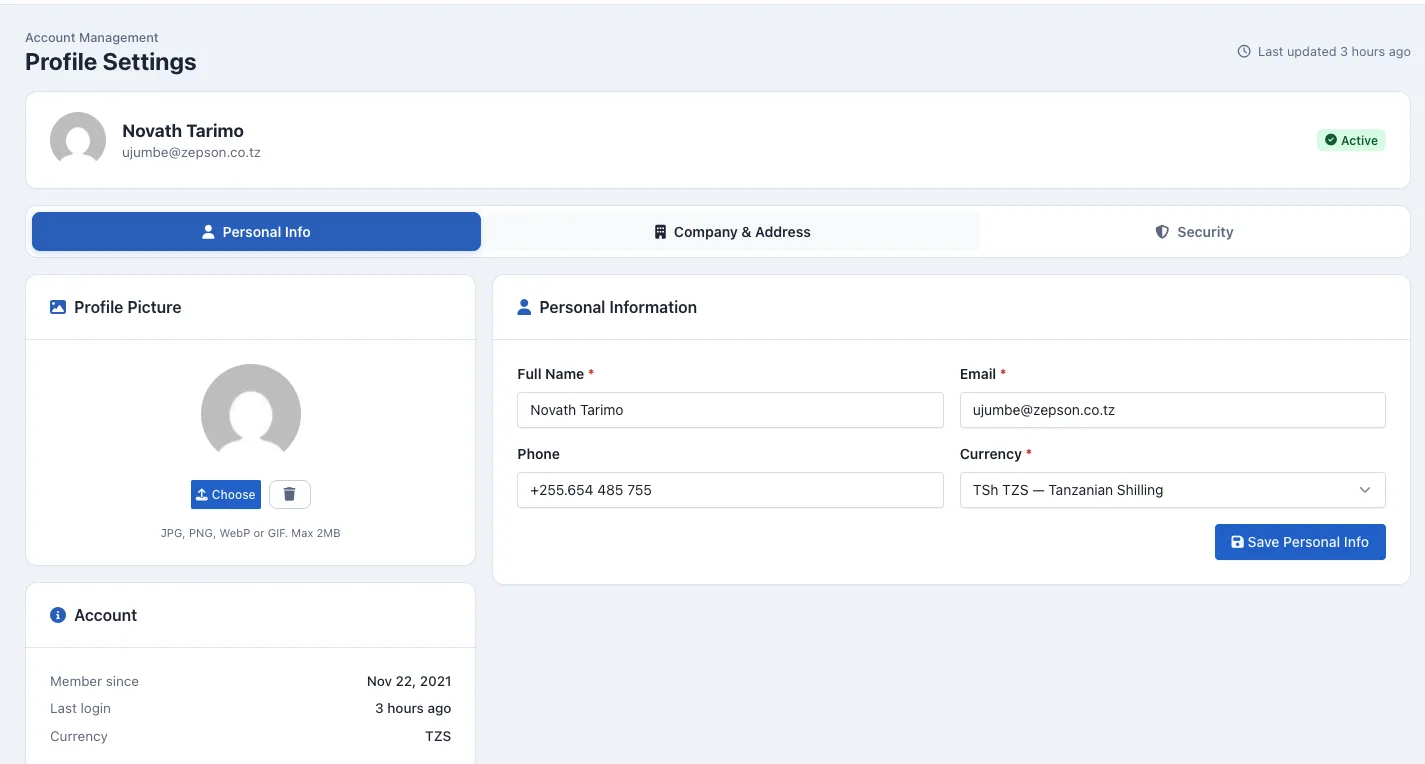
Click the Security tab to switch from your general profile details to the security settings area for your Momo Cloud account. This is where account protection features are managed, including password controls and two-factor authentication.
Once the Security tab opens, take a moment to review the page layout. You should see a password-related section as well as a separate Two-Factor Authentication area. That second section is the one you will use in the next step.
Before setup starts, the two-factor authentication status should appear as Disabled. This is a useful check because it confirms that 2FA has not yet been activated on the account and that you are about to start a fresh setup rather than editing an existing one.
Tip: If you do not immediately see the Two-Factor Authentication area, make sure you are on Security and not still viewing Personal Info or Company & Address.
When you have confirmed that the Security tab is open and the 2FA section shows Disabled, you are ready to begin.
Step 4: Start Two-Factor Authentication Setup
In the Two-Factor Authentication section, click the Enable two-factor authentication button. This starts the setup process for your account and expands the setup area directly below the current status.
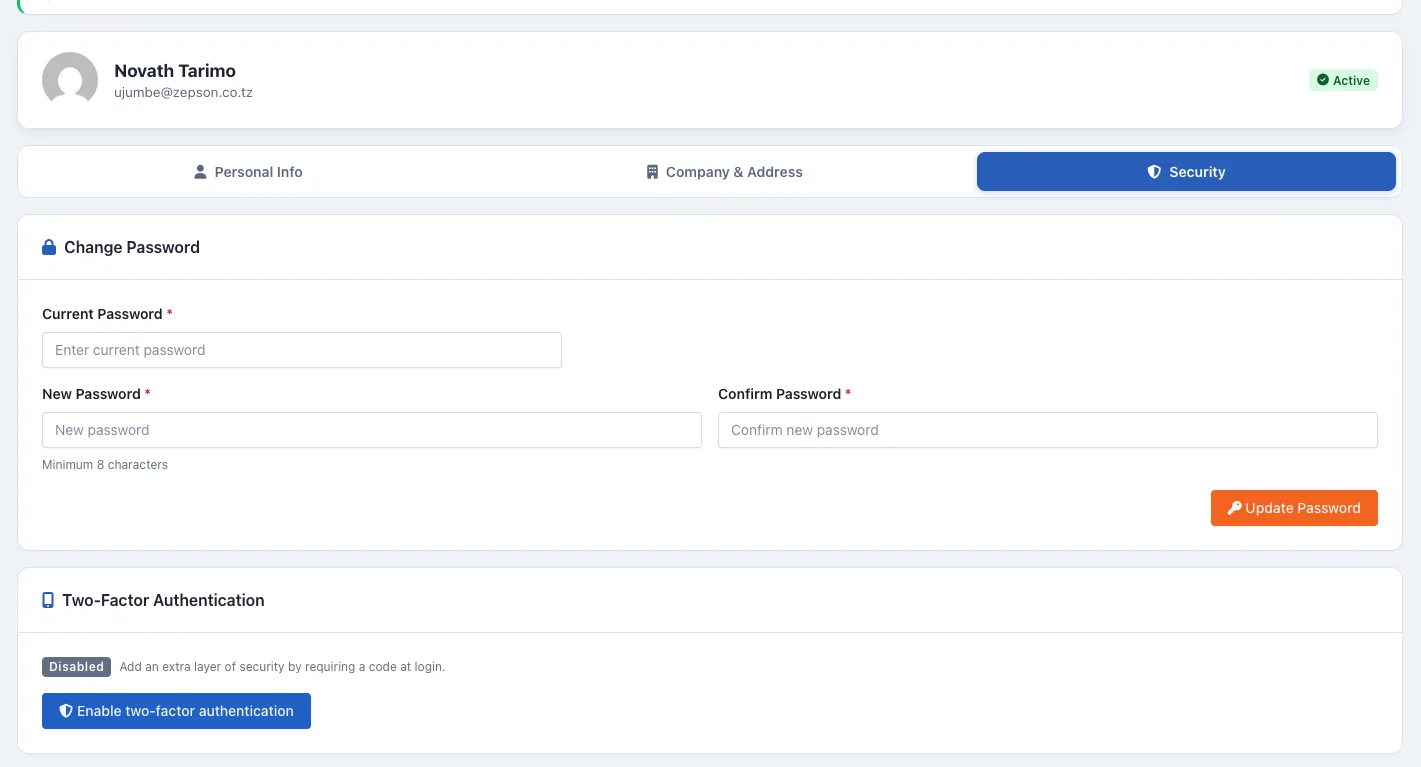
After you click the button, a setup panel should appear underneath instead of taking you to a different page. This panel is where Momo Cloud provides the information your authenticator app needs to begin generating login codes for your account.
Review the QR code and setup details
The most prominent item in the panel is the QR code. This is the code you will scan with an authenticator app such as Google Authenticator, Microsoft Authenticator, Authy, or another app that supports standard time-based one-time passwords. Scanning the QR code is usually the fastest option because it imports the account details automatically.
Next to the QR code, you should also see a manual setup key. This key matters if your phone cannot scan the code, your camera is unavailable, or you prefer to add the account manually inside your authenticator app. In that case, choose the option in your app to add an account manually, then enter the setup key exactly as shown.
Tip: Treat the QR code and manual setup key like a password. Anyone who adds them to their authenticator app could generate valid login codes for your account.
Locate the verification field before continuing
In the same setup panel, you should also see a Verification code field and a Confirm & enable button. These are the controls you will use after your authenticator app has been linked. The app will generate a 6-digit code, and you will enter that code into the field to prove the setup was completed successfully.
At this stage, you do not need to guess or create your own code. The code must come from the authenticator app after you scan the QR code or enter the manual setup key. Once that is done, you will return to the Verification code field and use Confirm & enable to finish activating 2FA.
With the setup panel open and the QR code, manual key, and verification field visible, you are ready to connect your authenticator app in the next step.
Step 5: Scan the QR Code in Your Authenticator App
Now switch to your phone and open the authenticator app you want to use for your Momo Cloud account. Common options include Google Authenticator, Microsoft Authenticator, Authy, and similar apps that support time-based one-time passwords. If you have not installed one yet, install it first, then return to the 2FA setup screen in your Momo Cloud client area.
Inside the app, look for the option to add a new account. Depending on the app, this may appear as a + button, Add account, or Scan QR code. Choose the QR scan option so the app opens your phone camera.
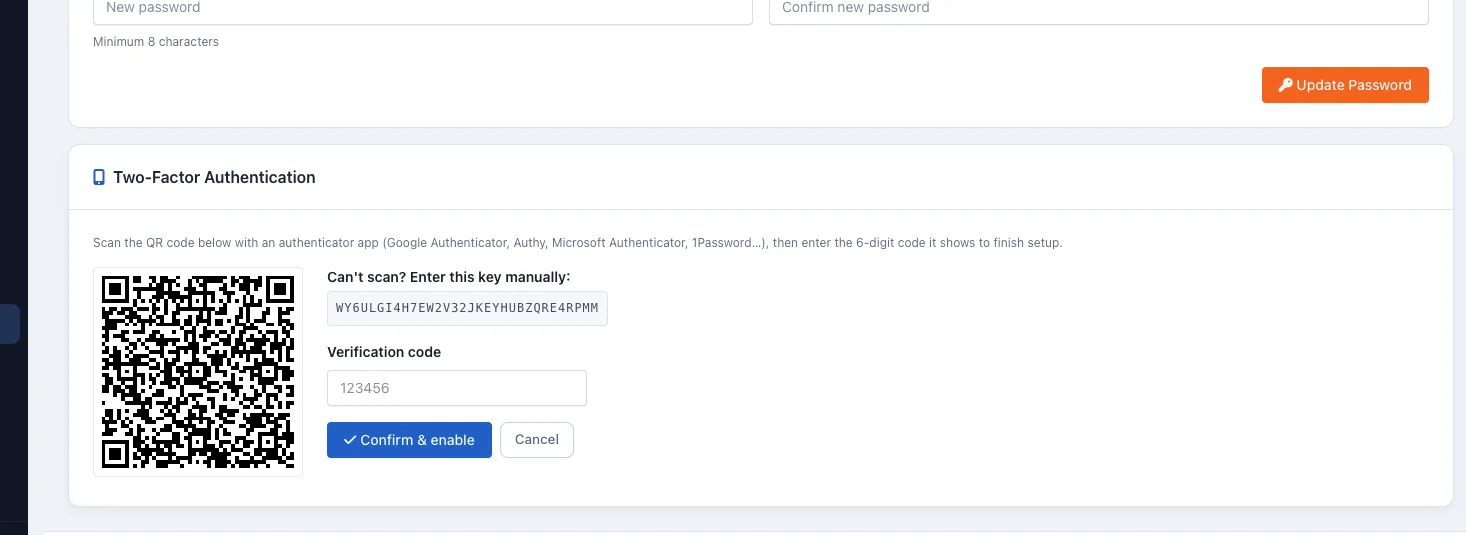
Scan the QR code from the Momo Cloud setup screen
With your phone camera active inside the authenticator app, point it at the QR code displayed in Momo Cloud. Make sure the full code is visible on your screen and keep the phone steady for a moment. In most cases, the app will detect the QR code automatically and add the account immediately.
Once the scan succeeds, you should see a new entry for your Momo Cloud account inside the authenticator app. The exact account name can vary, but the important part is that a new token has been created from the QR code shown in the client area.
If scanning does not work, use the setup key manually
If the camera does not recognize the QR code, do not keep retrying indefinitely. You can use the manual setup key shown next to the QR code instead. In your authenticator app, choose the option to add an account manually, sometimes labeled Enter setup key, Enter code manually, or Manual entry.
Then copy the setup key from Momo Cloud and enter it exactly as displayed. Pay close attention to each character. If you mistype even one letter or number, the app will generate codes that do not match your account, and verification will fail in the next step.
Tip: If manual entry fails, check for common typing mistakes such as confusing 0 with O or 1 with I. Enter the key exactly as shown in Momo Cloud, without adding spaces unless your app inserts them automatically for display.
Confirm that the app is generating a 6-digit code
After the account is added, the authenticator app will begin showing a 6-digit verification code for your Momo Cloud login. This code changes automatically every 30 seconds, so it is normal to see a small timer or progress ring counting down before a new code appears.
You do not need to memorize the code or keep the same one for long. Just make sure the account is present in the app and that a fresh 6-digit code is visible. In the next step, you will enter one of these codes into the Verification code field in Momo Cloud to finish enabling two-factor authentication.
Step 6: Enter the 6-Digit Verification Code
With your authenticator app now showing a live code for your Momo Cloud account, go back to the same Momo Cloud setup screen where the QR code and setup key were displayed. You should still see a field labeled Verification code and the button to complete setup.
In your authenticator app, look for the current 6-digit code for the Momo Cloud entry you just added, then type that code into the Verification code field exactly as shown. The code is usually numeric only, for example 482731, and should be entered without spaces.
Use the latest code shown in your app
Time-based authentication codes expire quickly, usually every 30 seconds. If the code is about to change, it is better to wait for the next one and enter the fresh code rather than trying to submit one that may expire before Momo Cloud verifies it.
If the platform says the code is invalid, first check whether the code changed while you were typing. Then enter the newest 6-digit code shown in the app and try again. This timing issue is one of the most common reasons verification fails during setup.
Tip: Before you click the confirmation button, glance at the timer in your authenticator app. If only a second or two remains, wait for the code to refresh and use the new one to avoid a failed verification.
Finish enabling two-factor authentication
Once the correct code is in the Verification code field, click Confirm & enable. This completes the initial two-factor authentication setup and links your authenticator app to your Momo Cloud account.
After confirmation, Momo Cloud should accept the code and move you to the next stage, where you can verify that 2FA is active and store your recovery information safely.
Step 7: Confirm That 2FA Is Enabled
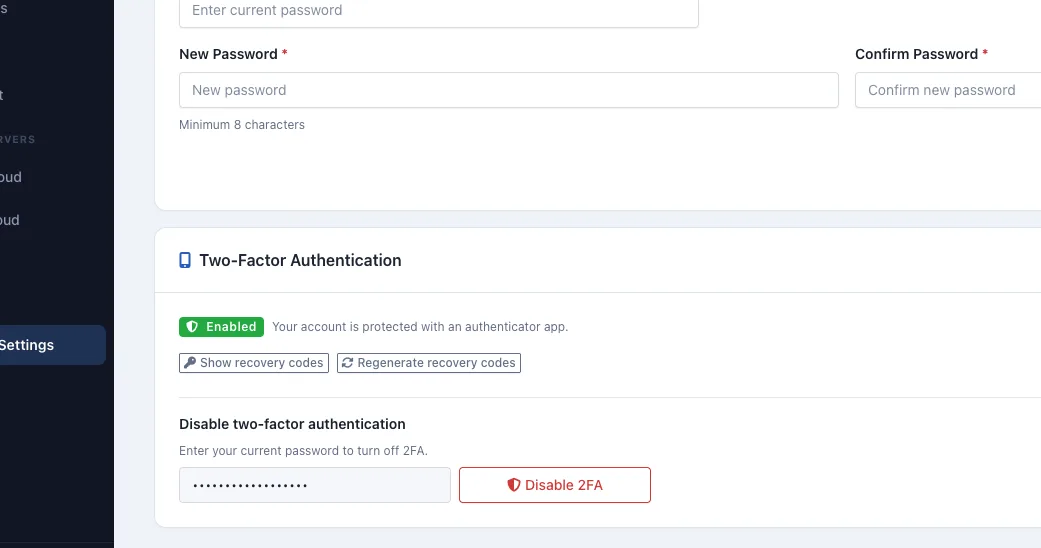
After you click Confirm & enable, the next check is simple: make sure the security panel now shows that two-factor authentication is active. This confirms that your Momo Cloud account is no longer relying on your password alone.
You do not need to scan the QR code again or enter another setup code at this stage. Instead, you are verifying that the account status changed successfully and that the extra account-protection options are now available.
Look for the Enabled status
Return to the Two-Factor Authentication section in your account security settings. If setup completed correctly, the status should now display Enabled. That is the clearest sign that 2FA is active on your account.
In the same area, you should also see a confirmation message stating that your account is protected with an authenticator app. This confirms the method linked to your account is app-based authentication, not just a partially saved setup attempt.
Check for the new recovery code options
Once 2FA is enabled, the section should also reveal new actions that were not visible before setup was finished. In particular, look for Show recovery codes and Regenerate recovery codes.
These options are important because recovery codes act as backup access methods if you lose your phone, uninstall your authenticator app, or cannot generate a valid login code for any reason. Seeing these buttons is another strong sign that 2FA has been fully activated rather than left incomplete.
You do not need to use those options immediately to finish enabling 2FA, but you should expect them to appear now. The next step is to view those codes and store them somewhere safe.
Notice the disable area, but do not use it now
After setup, you may also see a Disable two-factor authentication area in the same section. This is normal. It appears only after 2FA has already been turned on, and it gives you a way to remove that protection later if needed.
That area is not part of the activation process, so there is nothing else you need to do with it right now. As long as the section shows Enabled and confirms that your account is protected with an authenticator app, your setup is complete.
Tip: If you do not see Enabled or the recovery code options after confirming, refresh the page once and check again. If the status still does not change, return to the security section and repeat the verification step with a fresh 6-digit code from your authenticator app.
Step 8: View and Store Your Recovery Codes
Now that two-factor authentication is enabled, the next task is just as important as scanning the QR code and confirming your first login code: saving your recovery codes. These codes are your backup path into the account if your authenticator app is unavailable.
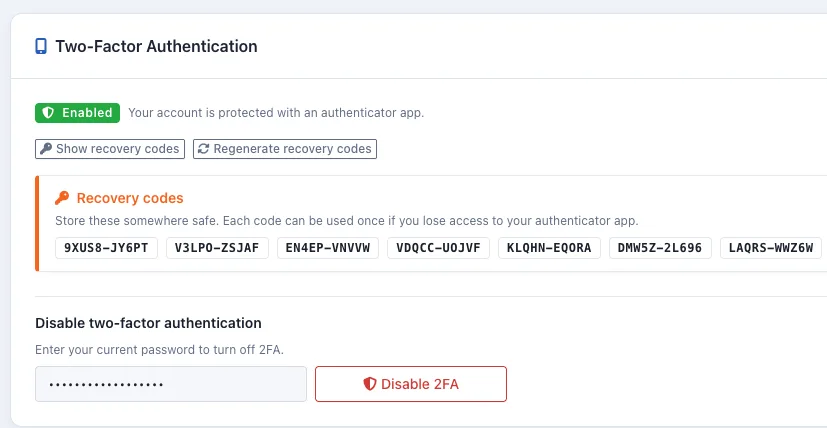
In the same two-factor authentication area, click Show recovery codes. This opens the list of backup codes generated for your account.
What recovery codes are for
Recovery codes are one-time backup codes. Each code can be used once in place of the normal 6-digit code from your authenticator app. They are meant for situations such as:
- your phone is lost or stolen,
- you reset or replace your device,
- the authenticator app was removed,
- the app data did not transfer to your new phone, or
- you cannot generate a valid time-based code when logging in.
If one of those situations happens, a saved recovery code can let you sign in and regain control of the account without being locked out.
Store them somewhere safe
As soon as the codes are visible, save them in a place that is secure and easy for you to access in an emergency. Good options include a trusted password manager's secure notes feature or a carefully stored offline record, such as a printed copy kept in a locked location.
Avoid leaving recovery codes in unsafe places such as an unprotected text file on your desktop, a screenshot saved to a shared device, or an email draft sitting in your inbox. Anyone who gets both your password and a valid recovery code could potentially access your account.
Because each code works only once, do not assume you can memorize one and ignore the rest. Save the full set exactly as shown and make sure the copy is readable before you close the page.
Tip: Treat recovery codes like passwords. Store them in a secure password manager or an offline record you control, and remove any temporary screenshots or copied notes after saving them properly.
Use regenerate carefully
You will also see a Regenerate recovery codes button. This creates a completely new set of recovery codes and invalidates the previous set. In other words, once you regenerate them, any older saved codes will no longer work.
That is useful if you think your existing recovery codes may have been exposed, copied, or stored in the wrong place. However, it should be used carefully. If you regenerate codes and forget to save the new set, you may lose your backup access method.
A good rule is simple: only click Regenerate recovery codes when you have a clear reason, and after doing so, immediately replace your old saved copy with the new one. Do not keep relying on the earlier set, because it becomes invalid as soon as the new codes are issued.
How 2FA Works at Login After Setup
Once two-factor authentication is enabled, signing in to your Momo Cloud account includes one extra check after your password. This is the point of 2FA: even if someone knows your email address and password, they still cannot complete login without the time-based code from your authenticator app or a valid recovery code.
In day-to-day use, the process is quick. After you enter your normal login details at cloud.momo.tz, Momo Cloud takes you to a separate verification step before access is granted.
Enter your email and password first
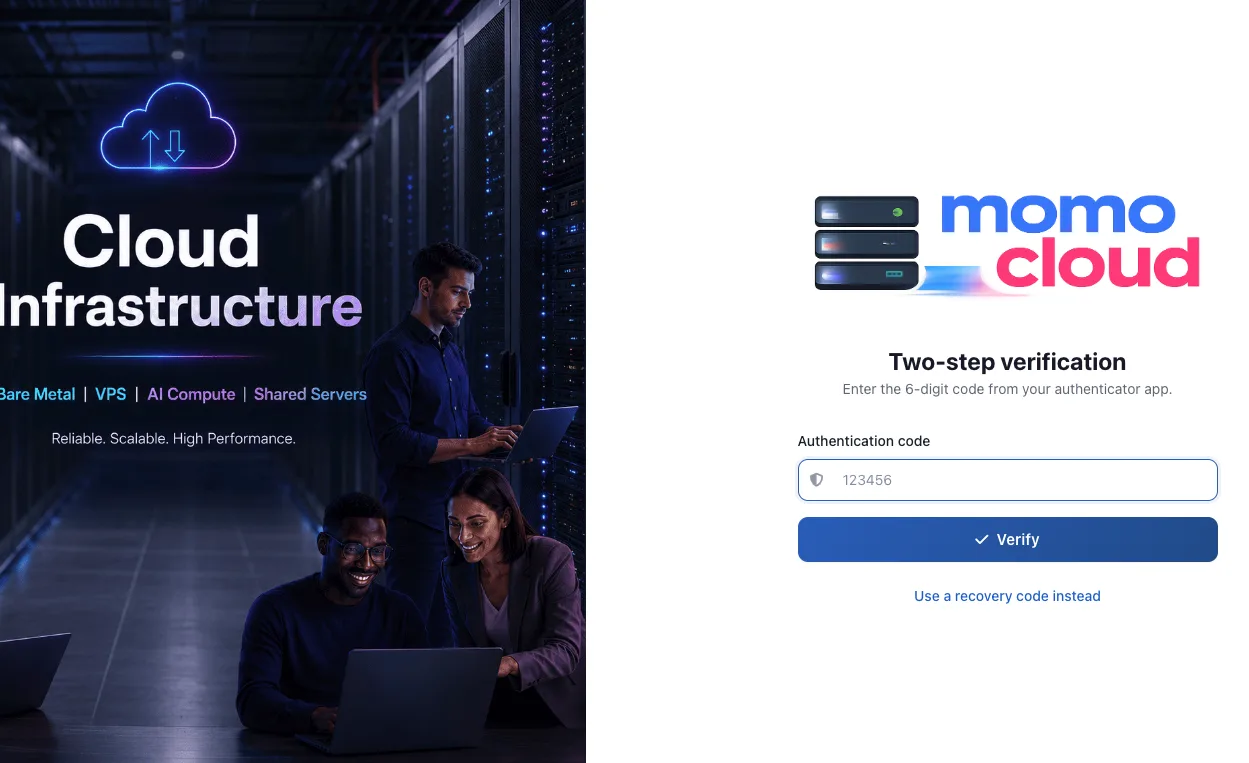
Start your sign-in as usual by entering your account email address and password on the Momo Cloud login page. If those details are correct and 2FA is active on your account, you will not go straight into the dashboard. Instead, Momo Cloud shows a Two-step verification screen asking for a 6-digit code from your authenticator app.
This is expected behavior. It means your extra security layer is working properly.
Use the current 6-digit code from your authenticator app
Open the authenticator app you used during setup, such as Google Authenticator, Microsoft Authenticator, Authy, or another compatible TOTP app. Find the entry for your Momo Cloud account and read the current 6-digit code shown there.
Type that code into the Authentication code field exactly as displayed. The code changes automatically every 30 seconds, so if one is about to expire, it is often easier to wait for the next fresh code and enter that one instead.
You do not need to add spaces or extra characters. Just enter the six digits and make sure you are using the code for the correct account if your authenticator app contains multiple entries.
Click Verify to finish signing in
After entering the code, click Verify. If the code is valid and still within its time window, Momo Cloud completes the sign-in process and takes you into your account.
From the user side, that is all there is to it: password first, authenticator code second, then access. In practice, the extra step usually takes only a few seconds once you are used to it.
Tip: If a code is rejected, first check whether the number has just expired in your authenticator app. Wait for the next 6-digit code to appear, then enter the new one and click Verify again.
Use a recovery code if your app is unavailable
On the same verification screen, you will also see the Use a recovery code instead option. This is your emergency fallback for situations where you cannot access your authenticator app, such as after losing your phone, resetting it, or uninstalling the app before transferring your accounts.
When you choose that option, Momo Cloud lets you sign in with one of the recovery codes you saved earlier instead of the usual 6-digit authenticator code. Because recovery codes are limited backup credentials and each one is normally used once, they should only be used when you genuinely cannot get a code from your app.
The next section covers common mistakes that can block sign-in even when 2FA is set up correctly, and how to avoid them.
Common Mistakes to Avoid
Most 2FA problems are not caused by the authenticator app itself. They usually happen because one small step was skipped during setup, or because backup codes were stored in a way that does not help during a real lockout.
If you avoid the mistakes below, your Momo Cloud account will be easier to protect and easier to recover if your phone becomes unavailable.
Leaving the setup page before finishing
A common mistake is to scan the QR code, see the account appear in the authenticator app, and assume setup is complete. It is not complete until you return to the Momo Cloud security page, enter the current 6-digit code from the app, and click Confirm & enable.
If you close the browser tab, navigate away, or sign out before that final confirmation step, 2FA may not be activated on the account at all. In that situation, the app may still show a code for Momo Cloud, but the account itself has not yet been fully linked and enforced for login.
The safest approach is simple: stay on the setup screen until you see a clear confirmation that two-factor authentication has been enabled, then view and store your recovery codes before doing anything else.
Scanning the QR code but forgetting the verification step
Scanning the QR code only imports the secret into your authenticator app. Momo Cloud still needs proof that the app was set up correctly, which is why it asks for the 6-digit verification code immediately afterward.
For example, if you scan the QR code in Google Authenticator, Microsoft Authenticator, or another TOTP app and then stop there, you have only completed the app side of the process. You have not completed the account side. Until you enter a valid 6-digit code and click Confirm & enable, 2FA setup is incomplete.
This final verification step confirms that the QR code was scanned successfully, that the correct account was added, and that the app is generating valid time-based codes for Momo Cloud.
Keeping recovery codes only on the same phone
Recovery codes are meant to help when your authenticator app is unavailable. If you save those codes only on the same phone that runs the authenticator app, you may lose both at the same time.
That can happen if the phone is lost, stolen, damaged, reset, or replaced without backing up your apps and files properly. In other words, storing the recovery codes in a note, screenshot, or file on that same device creates a single point of failure.
A better option is to keep the recovery codes somewhere separate and secure. Practical examples include:
- a printed copy stored in a safe place,
- a password manager you can access from another device,
- or a secure encrypted record that is not tied only to the same phone.
What matters most is that you can still reach the recovery codes if the phone with your authenticator app is no longer available.
Warning: If your authenticator app and your saved recovery codes are both on the same phone, losing that phone can leave you without any second-factor method at all. Store the recovery codes separately before you rely on 2FA for everyday sign-in.
Entering a code that has already expired
Authenticator codes are time-based and usually refresh every 30 seconds. Because of that, a code can become invalid between the moment you read it and the moment you click Verify or Confirm & enable.
If Momo Cloud rejects a code, do not keep retrying the same number. Check your authenticator app and see whether the time window is nearly over. If it is, wait for the next 6-digit code to appear, then enter the new one carefully.
This is especially important during initial setup, because an expired code can make it look as though the QR scan failed when the real issue is simply timing. Typing the fresh code from the next cycle usually resolves it.
If new codes are still being rejected, double-check that your phone's date and time are set automatically. Large time drift on the device can cause valid-looking codes to fail.
Regenerating recovery codes before saving the new set
Recovery codes should be handled carefully because generating a new set normally replaces the old one. Once that happens, the previous recovery codes should no longer be trusted for future access.
The mistake to avoid is clicking to regenerate recovery codes and then closing the page, failing to copy them, or forgetting where you saved the replacement set. That can leave you believing you still have backup access when the codes you saved earlier are no longer the active ones.
If you ever choose to generate new recovery codes, treat it like a controlled replacement process:
- Generate the new codes.
- Save the new set in a secure location.
- Verify that you can access that saved copy later.
- Only then discard any old copy you were previously keeping.
This helps ensure that your backup method stays usable instead of accidentally being replaced with a set you never actually stored.
A simple rule to remember
When enabling 2FA on Momo Cloud, think in three parts: finish setup completely, use a current 6-digit code, and store recovery codes somewhere separate from your authenticator device. Following those three habits prevents most avoidable sign-in issues.
If you do lose access to your authenticator app entirely, recovery options and next steps become important. The next section covers what to do in that situation.
If You Lose Access to Your Authenticator App
Losing access to your authenticator app does not always mean you are locked out permanently. If you saved your recovery codes when you enabled 2FA, you can usually use one of them to get back into your Momo Cloud account and then update your security settings.
The key is to act carefully: use a valid recovery code, sign in, and then immediately review your two-factor setup so your account remains protected going forward.
Use a recovery code from the login page
If your phone was lost, reset, replaced, or the authenticator app was removed, start at the normal Momo Cloud sign-in page. After entering your username and password, look for the option to use a backup method such as Use a recovery code instead.
Enter one of the recovery codes you stored earlier exactly as saved. These codes are typically intended for one-time use, so it is important to use only one code for the current login attempt and keep the remaining unused codes available in your secure backup location.
Common situations where this helps include:
- Your old phone is no longer working.
- You changed devices and the authenticator app was not migrated.
- You deleted the authenticator app by mistake.
- Your device time or app data became unreliable and codes no longer match.
If the first recovery code does not work, double-check that you entered it correctly before trying another. Avoid repeatedly guessing, especially if you have only a limited number of saved codes left.
Warning: Recovery codes should be treated like passwords. Do not send them by chat, email, or screenshots, and never share them with anyone claiming to help you sign in.
After you sign in, review your 2FA settings
Once you are back in your account, do not stop at the dashboard. Go straight to your Profile Settings and open the Security area where two-factor authentication is managed.
This is the right time to check what happened and make sure the account is ready for your current device. For example, if your authenticator app was on a lost phone, you may need to reconnect 2FA with a new device or confirm that your recovery options are still available and current.
A practical review should include:
- Confirm that 2FA is still enabled on the account.
- Check whether you still have access to the authenticator app on any trusted device.
- Make sure your saved recovery codes are still available and readable.
- Replace outdated backups if you have already used a code or changed devices.
This matters because regaining access with a recovery code solves the immediate login problem, but it does not by itself restore your normal day-to-day 2FA method.
Generate a fresh set of recovery codes if needed
If you still have account access, it is a good idea to review whether your backup codes need to be refreshed. This is especially important if you used one of your saved recovery codes, are unsure whether an older copy is still private, or recently changed devices and want a clean backup set.
In your security settings, look for the option to view or regenerate recovery codes. If you create a new set, store it securely before leaving the page. As covered earlier in this guide, generating new codes usually replaces the old ones, so the newly generated set becomes the one that matters.
Good places to store recovery codes include:
- A reputable password manager with secure notes.
- An encrypted document you control.
- A printed copy kept in a private, physically secure place.
Try to avoid keeping your only copy on the same phone that runs your authenticator app. If that one device is lost or damaged, you could lose both your normal 2FA method and your backup access at the same time.
If you cannot sign in and do not have recovery codes
If you no longer have access to the authenticator app and you do not have any recovery codes saved, the next step is to contact Momo Cloud support for account assistance. In that situation, there is no safe self-service way to bypass two-factor authentication without a valid second factor or backup code.
When contacting support, be ready to provide enough information to help verify ownership of the account. The exact checks may vary, but the goal will always be to protect your services and billing information from unauthorized access.
To save time, explain the issue clearly, for example:
- You can enter the correct email address and password.
- You no longer have the device that held the authenticator app.
- You do not have any unused recovery codes available.
- You need help restoring access to your account securely.
For help with your Momo Cloud account, use the support options available through cloud.momo.tz.
Keep recovery codes private at all times
Recovery codes are designed for emergencies, but they are also sensitive credentials. Anyone who has your password and one of your valid recovery codes may be able to sign in as you, so those codes should never be shared casually or stored in an exposed place.
As a simple rule, if you would not post your password somewhere, do not do it with recovery codes either. Keep them private, keep them accessible only to you, and replace them if you believe they may have been exposed.
With that covered, the last thing to know is where to turn if you need extra help during setup or recovery.
Need Help?
If you run into a problem while enabling two-factor authentication, the safest next step is to contact Momo Cloud support through the options available in your client area at cloud.momo.tz. This is especially important if you cannot complete setup, your authenticator app is no longer available, and you do not have any unused recovery codes left.
When you ask for help, keep your message clear and specific so the support team can guide you through the correct account recovery process. For example, mention whether you can still sign in with your email address and password, whether the original phone was lost or reset, and whether you have already checked for saved recovery codes.
When to contact support
You should reach out if the setup screen will not complete, the verification code is repeatedly rejected even after checking your device time, or you have fully lost access to both your authenticator app and your recovery codes. In those cases, avoid creating workarounds or sharing sensitive details with anyone outside the official support channels. Account access issues should always be handled carefully to protect your services, billing information, and server management access.
Tip: If you still have access to your account, store your recovery codes before you log out. If you have not enabled two-factor authentication yet, doing it now is one of the simplest ways to strengthen the security of your Momo Cloud account.
Make account protection a priority
Two-factor authentication adds an important extra check between your password and your account. Even if a password is guessed, reused somewhere else, or exposed in another breach, 2FA makes unauthorized sign-in much harder. For any account that controls hosting, VPS access, invoices, or service changes, that extra protection is worth enabling as soon as possible.
If you need assistance, Momo Cloud support is there to help you recover access securely and get back into your account safely. Use the official support options at cloud.momo.tz, follow the verification steps provided, and if you have not enabled 2FA yet, take a few minutes to do it now.